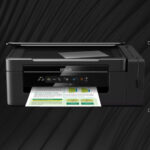




This guide will help you set up and begin using your product. It includes information on setting up your product and installing the software.
To troubleshoot Epson L3060 printer issues, start by checking the printer’s power and cable connections, ensuring the printer is selected as the default, and verifying the interface cable specifications. If the printer is offline, make sure it’s online in the printer settings. For scanning problems, ensure no other applications are using the scanner, update the driver, and potentially reinstall the Epson Scan utility.
Troubleshooting Steps:
Use the Epson Software Updater to ensure your printer drivers and software are up to date.
1. Power and Cable Connections:
Ensure the printer is plugged in and turned on.
Verify the USB cable is securely connected to both the printer and the computer.
Confirm the cable specifications match the printer and computer.
Avoid using devices like printer switching devices or extension cables.
2. Default Printer Selection:
Make sure the Epson L3060 is selected as the default printer.
To do this, go to Devices and Printers in the Control Panel, right-click on your printer, and select “Set as default printer”.
3. Offline Status:
If the printer shows as offline, access printer settings (as described above), find the printer, right-click, and choose “See printing” or “Use printer online”.
4. Scanning Issues:
Check for any other applications that might be using the scanner.
Restart your computer after reinstalling the Epson Scan utility.
Update the scanner driver from the official Epson website.
5. General Error:
“General Error” can be caused by various issues, including paper jams, incompatible cartridges, or problems with the printhead.
Check for obstructions in the print path and ensure you’re using compatible cartridges.
6. No Power:
If the printer won’t turn on, check for a stuck, loose, or damaged power button.
If the power button is fine, the problem might be with the power supply itself.
7. Epson Printer Troubleshooting Function:
Epson printers have a built-in troubleshooting function that can help diagnose common issues. Consult your printer’s manual or Epson’s website for instructions on how to access this function.
8. Ink Related Issues:
If the printer isn’t printing despite having ink, check for clogged nozzles, incorrect printer settings, or driver issues.
Air bubbles in the ink system can also cause printing problems, even with full cartridges.
9. Software Updates:
Check All About This Product here ..
Target Print Store
Drivers, Videos, Manual and Documentation from EPSON main page.
The development of neural networks is a specialized task that requires expertise and experience. Our team of skilled professionals excels in designing and implementing neural network architectures tailored to your specific business needs. From traditional feedforward networks to advanced convolutional and recurrent networks, we have the knowledge and skills to build models that deliver superior performance and accuracy.